1 Linux Basics
1.1 What are Linux, bash, and the NCGR Server?
A little shell… aka the $ prompt is the command line interface
- A shell is a user interface to the operating system.
- CLI (Command Line Interface)
- GUI (Graphical User Interface)
- Bourne-Again SHell (bash) is a Unix shell and command language
- Each command drives a program or script by talking to the Operating System (Linux)
1.2 Connecting to the linux server
Open your terminal.
Type the following on your command line, substituting in your username for
. Your username is usually the first letter of your first name and your last name (all lowercase).
ssh -p2309 <username>@inbre.ncgr.orgNotes:
- Because we’re logging in remotely, the -p option is required to specify port 2309.
- If you’re prompted to confirm the connection, say “yes”, then enter your password.
- Your password will not show up when you type it but it is registering what you are typing.
Enter your password.
Change your password.
passwdEnter you current password then the new password when prompted.
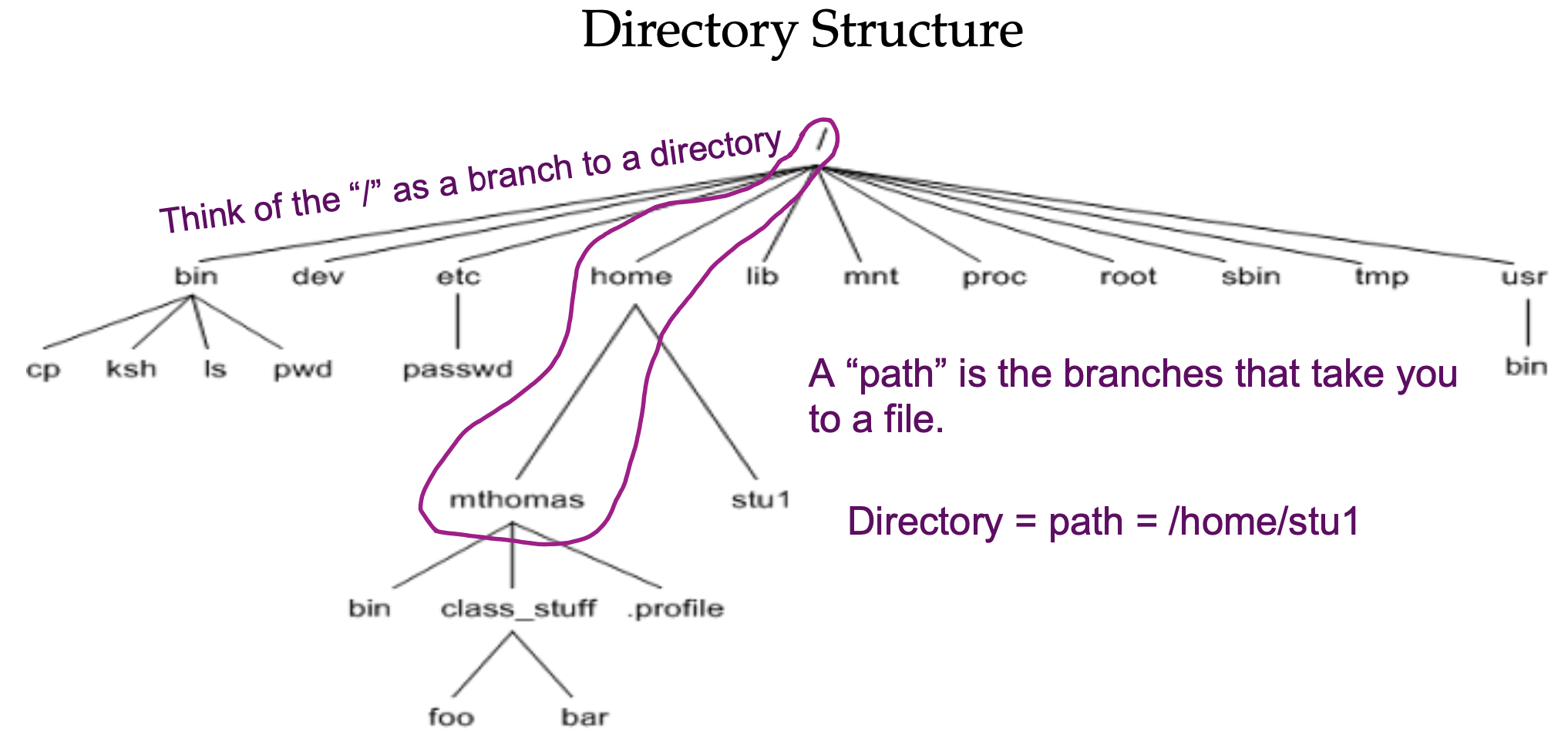
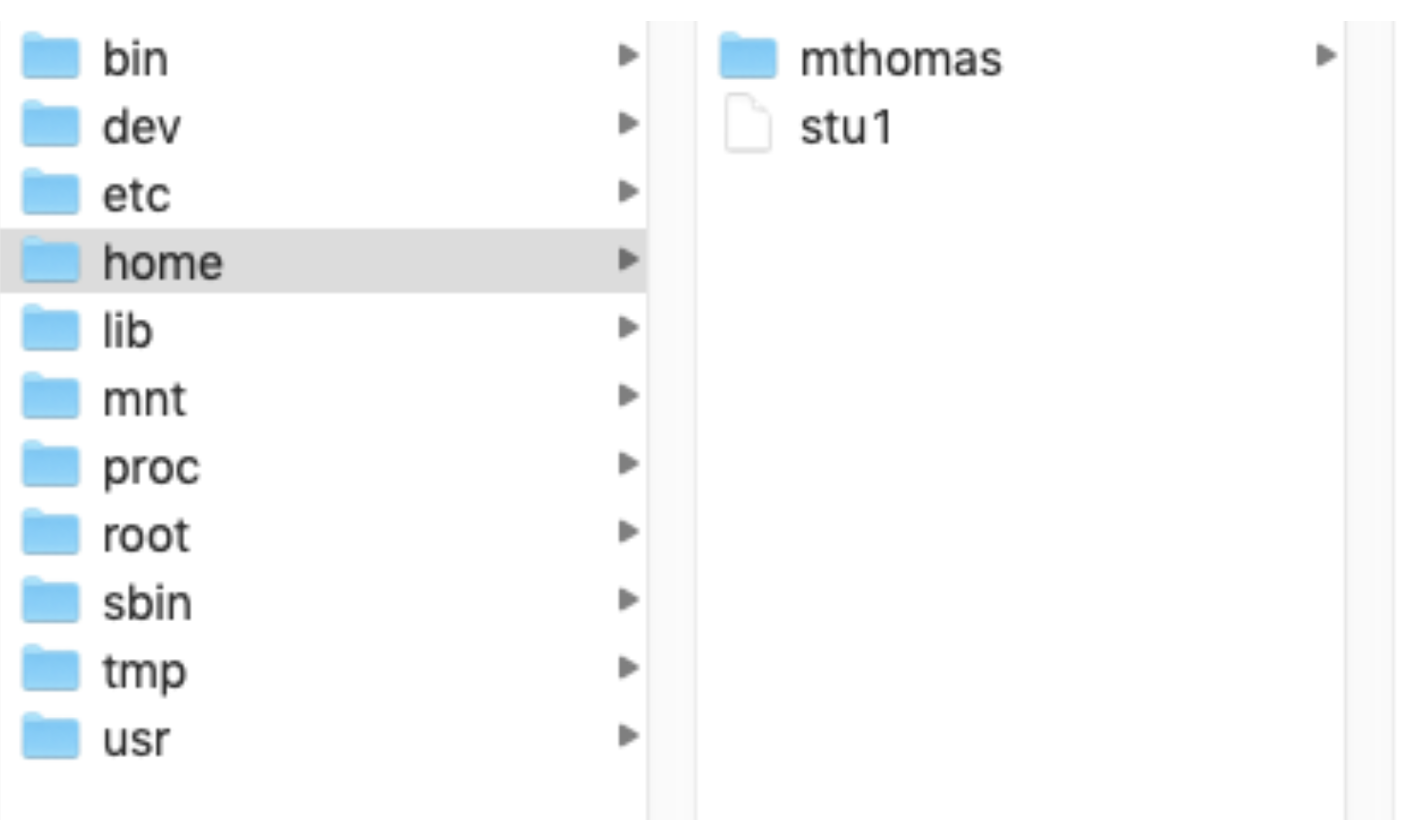
1.3 Understanding Directories
print working directory (pwd), mkdir (make directory), and list contents (ls)
pwd- This is your “home” directory.
Now, create a dir under your home directory for this linux class:
mkdir linuxc

ls
1.4 Listing options
using the ls command
- long list:
ls -l- long list, by time, reverse order -old to new:
ls -ltr1.6 History command
lists the commands you have entered
historyScroll through recent commands with the up and down arrows.
To perform a command from the list by number:
!17To perform the last command you made:
!!1.7 Files: creating by redirecting standard out
redirect operator >
To send output to a file instead of standard out:
- standard out is just the terminal screen
history > history.txtThe cat command will print the contents of the file to the screen.
cat history.txtNow you have a file with your commands!
1.8 File name completion with tab
To autocomplete remainder of file name instead of typing it all in:
- cat h…(press tab)
- cat history
- prevents typos and saves time
1.11 Copying files between your laptop and the NCGR server
Open FileZilla.
- Change the connection from ftp (file transfer protocol) to sftp (ssh file transfer protocol).
In the menus, click File:Site Manager.
Click on “New Site”.
Under protocol, choose “SFTP - SSH File Transfer Protocol.
Under host, type “inbre.ncgr.org”.
Under host, type “2309”.
Put in your username.
Click “Connect”.
Note: The first time you connect, you might get a popup about an “unknown host key”. Click the box to “always trust this host” and click “OK”.
Now you should be able to navigate to files on your local machine (left) and on the NCGR server (right). You can drag files between them.
Note: if you create new files they won’t show up until you hit the refresh button in FileZilla (blue and green circular arrows at the top of FileZilla).
Try to download your history file from the NCGR server (history_file.txt) that is in your ~/linuxc directory.
You can right click on the downloaded file (left side of FileZilla) and choose open to open the file on your local computer.
Note: Double-click transfers files instead of opening them.
1.13 Tool box: How to abort a command/process
Hold “control” key then hit “c” key, then release.
- Control-key often referred to as CTRL.
Let’s say you type a command and nothing happens; it hangs. This can happen when the syntax doesn’t make sense. Good time for CTRL-c
catThis should hang because the cat command needs a file name after it. Hit ctrl-c to stop it (you should see the prompt again).
1.15 Head and Tail
The head and tail commands give you the first or last 10 lines of a file, which can be handy for getting a glimpse into the contents of a file.
Grab the beginning of a file.
head covid.fastaGrab the end of the file.
tail covid.fasta1.16 The pipe operator
The pipe operator takes the output of one command and puts it as input into a second command.
+ The symbol “|” denotes a pipe
Use the pipe operator to redirect “cat” output to “head”:
cat covid.fasta | headNote: This is a trivial example as it does the same thing as “head covid.fasta” but you get the point.
1.17 grep
Grep will output the lines from a file that contain a provided expression.
Syntax: grep [options] “expression” filename
grep ">" covid.fastaAdding the “-c” option counts the number of lines containing a match
- not the number of matches!
grep -c ">" covid.fastaThe “-v” option reverses the grep search.
grep -v ">" covid.fastaUse ctrl-c to halt the overflow of output.
We can add in the pipe operator to redirect our output to the “wc” command. The -l parameter limits the wc output to the number of lines.
grep -v ">" covid.fasta | wc -l